If a client calls and asks for us to reset their password, please follow these steps:
- Explain that they can reset it themselves from their account by clicking the 'Forgot username or password' option on the COL login page.
- If they say that they did that, ask them what email address they entered and check COAT to ensure it's the same email address associated with their account.
- If the email address is correct, ask them to check their SPAM or JUNK folders.
- If they still can't find it, you may resort to resetting their password yourself to a temporary one in COAT - BUT you must first verify them per the user verification policy.To properly verify any user you must ensure that they have answered any three (3) of the following list of acceptable verification questions:
- Date of birth
- Postal code on account
- Any of the three (3) security questions on their account
- Any of the three (3) security questions on their account
- Any of the three (3) security questions on their account
- CAC
- MCC code
- Email on account
- Last payment made to CaRMS
- Any program they applied to last year
- Match result
- Two (2) applicants for which a reference letter was submitted (for referees)
- Last browser used to log in to COL
- Phone number on account
- * If a user sends an email to CaRMS from the same email address listed in their COL account, then no further verification is required. If an email is sent from an email address not associated with the account in question, then please follow the above verification requirements to properly verify the user.
- To reset the password, click on the EDIT button from the client's account in COAT.
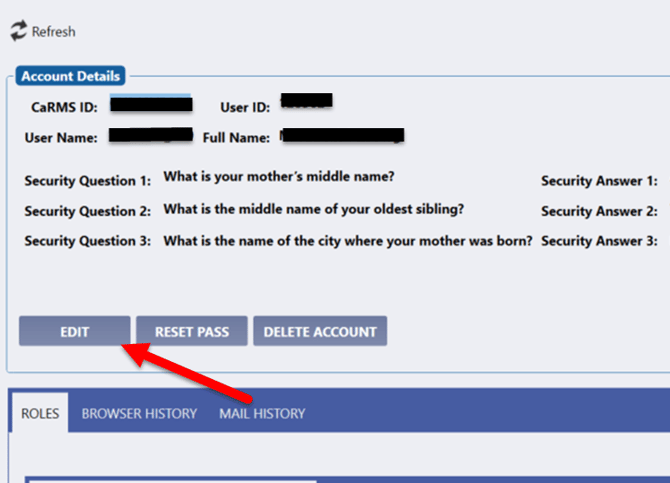
- Create any temporary password in the "New Password" section, and click SAVE.
- Ask the client to try to login again but with the new temporary password.
- Once they are successfully logged in, show them how to change the password again for security purposes by clicking on their name at the top-right under "Security Information".
- Explain to them that this section allows them to change their Username Password, and security questions/answers at any time.